附加元件
附加元件






關於此附加元件
Description:
If you want to send a message to multiple recipients, there are a few common problems:
1) When you add the recipients in the To field, the recipients will see each other. (You can work around this problem by adding the recipients in the Bcc field.)
2) Most email providers limit the number of recipients in the To / Cc / Bcc field. (You can work around this problem by creating multiple messages.)
3) You cannot personalize the message. (You cannot work around this problem.)
You can work around some of these problems, but especially the last problem cannot be solved without creating individual messages. Of course there are third party services, that help you to send newsletters; but you have to trust them.
Mail Merge solves these problems by creating an individual and personalized message for each recipient in the To field from a draft message - locally on your computer without the need to trust third party services!
----------------------------------------------------------------------------------------------------
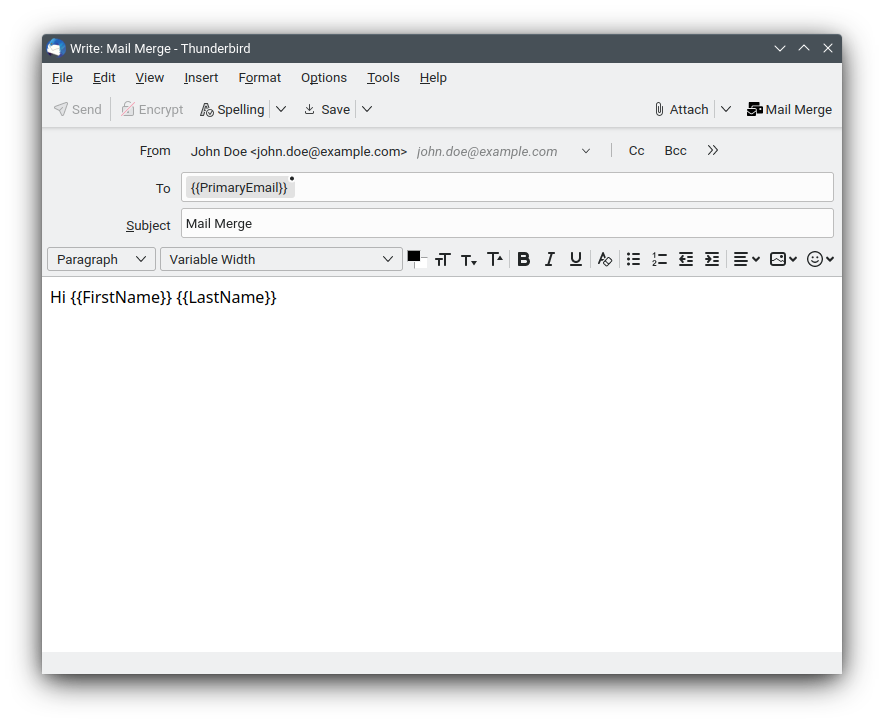
Step by Step: (Address Book)
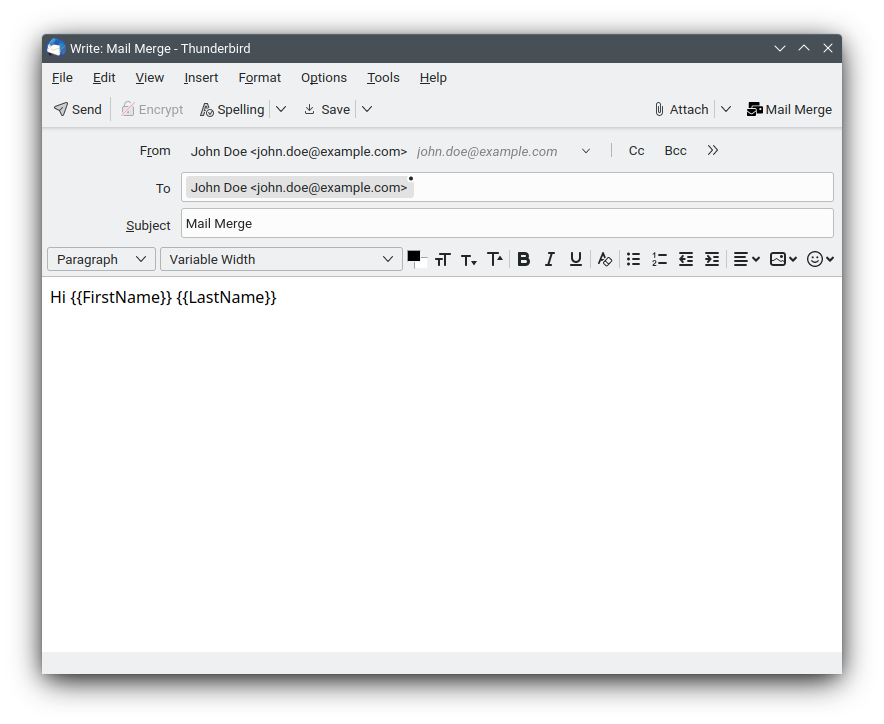
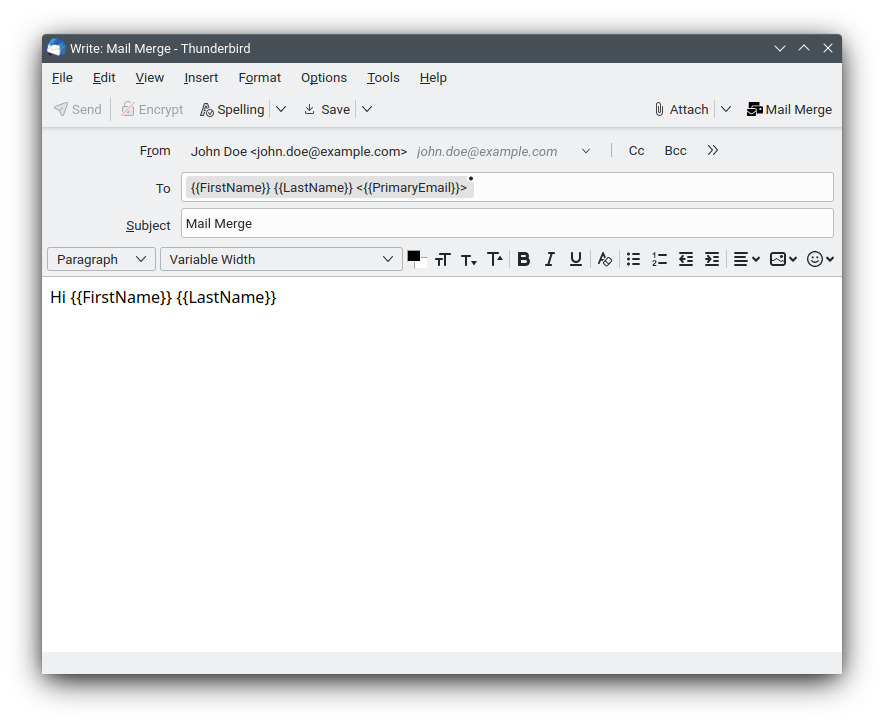
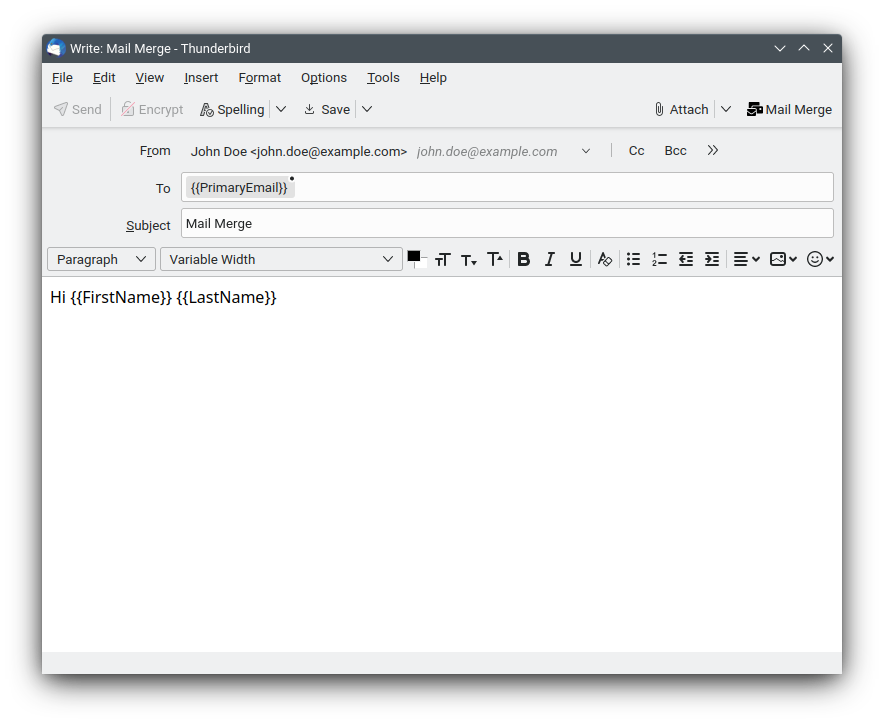
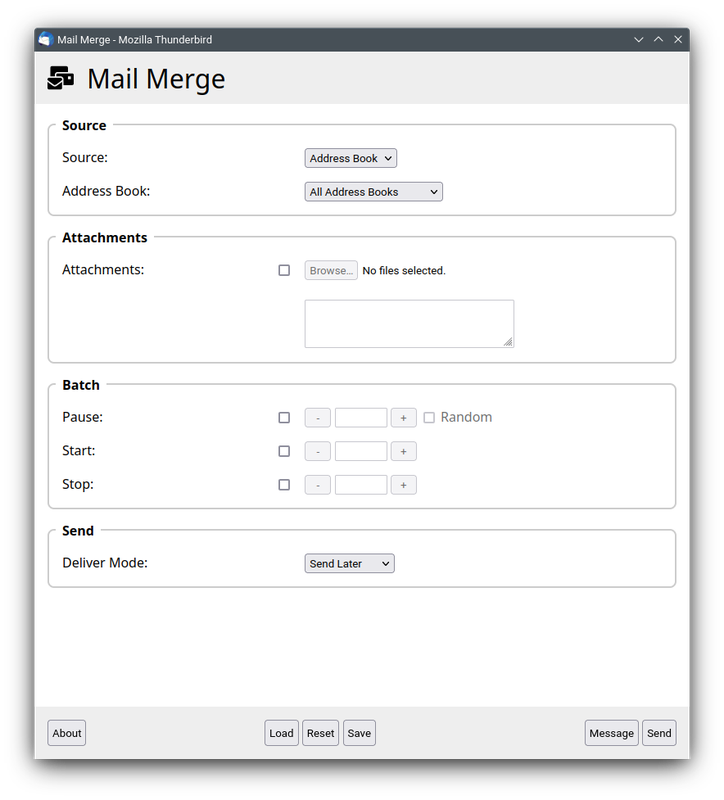
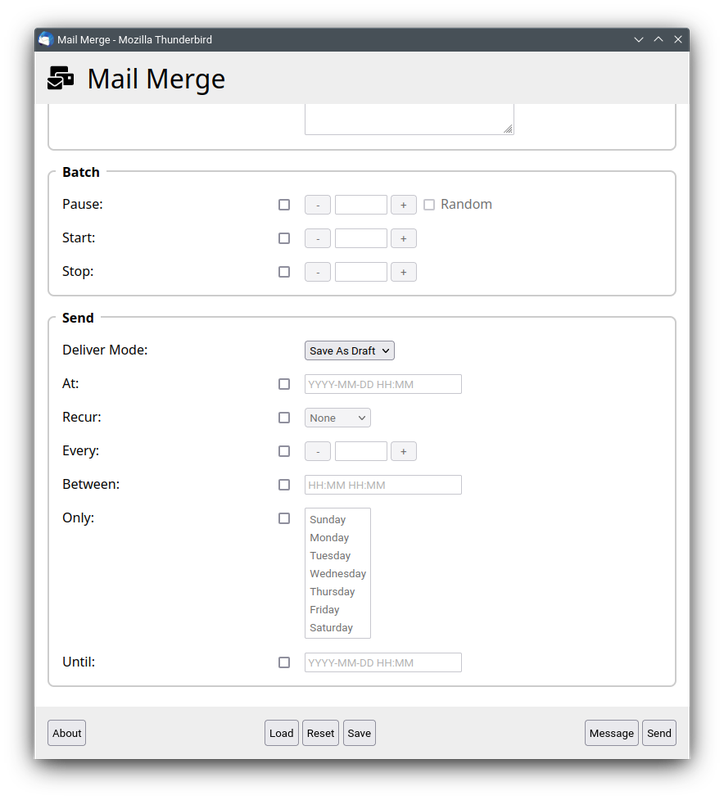
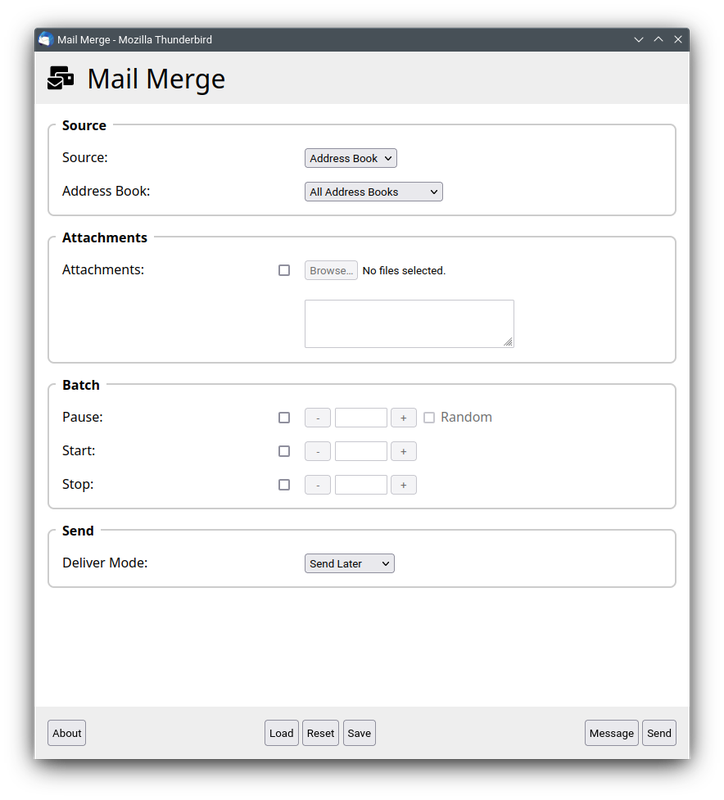
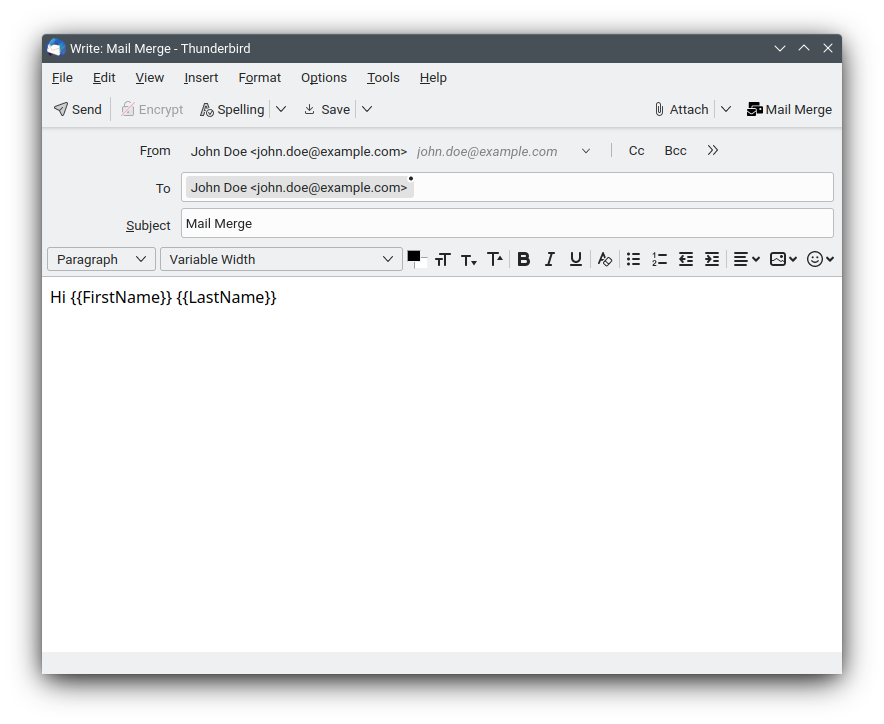
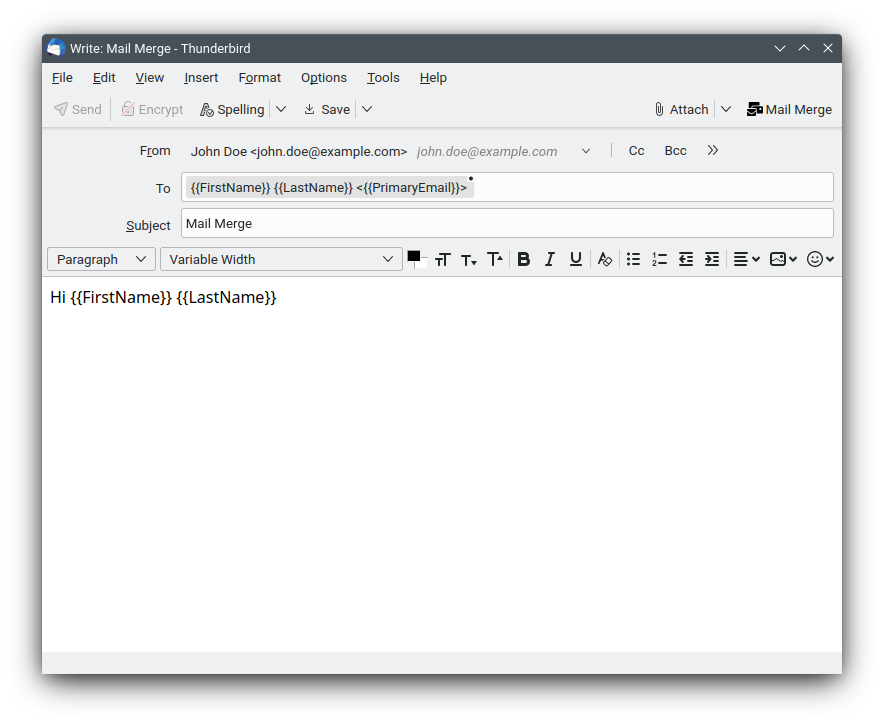
Screenshots: Draft Message | Draft Message | Draft Message | Mail Merge Dialog
The draft message is saved as a template in the "Templates" folder of your current account and for each recipient an individual and personalized message is automagically created in the folder "Local Folders -> Outbox"; ready for delivery via "File -> Send Unsent Messages".
----------------------------------------------------------------------------------------------------
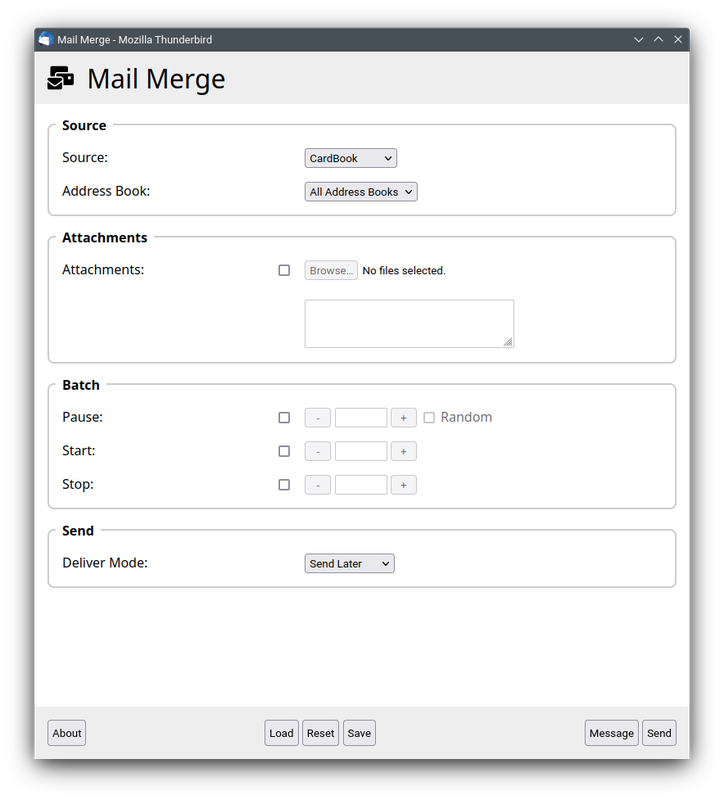
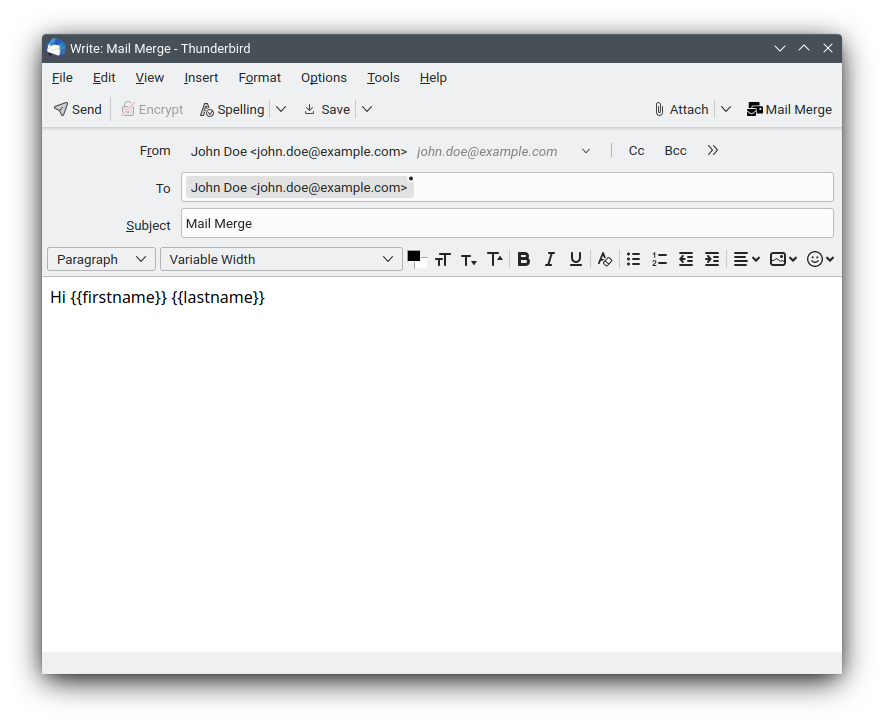
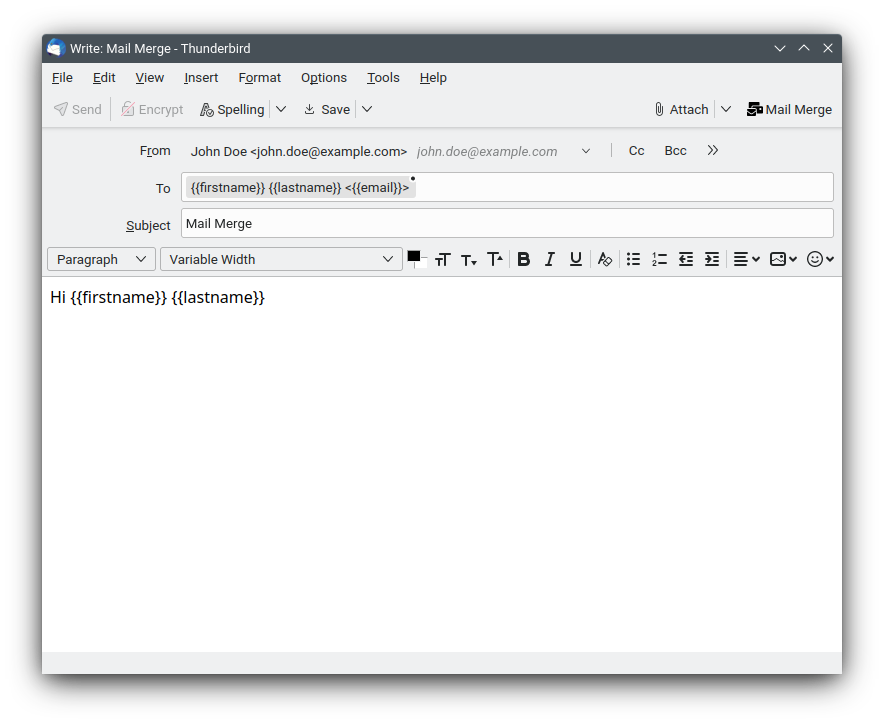
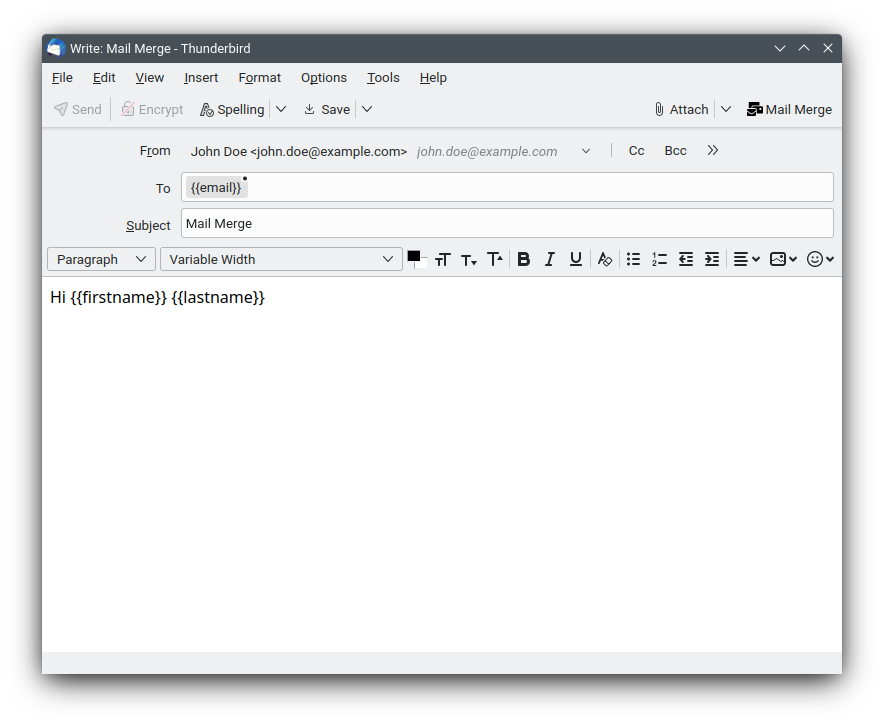
Step by Step: (CardBook)
Screenshots: Draft Message | Draft Message | Draft Message | Mail Merge Dialog
The draft message is saved as a template in the "Templates" folder of your current account and for each recipient an individual and personalized message is automagically created in the folder "Local Folders -> Outbox"; ready for delivery via "File -> Send Unsent Messages".
----------------------------------------------------------------------------------------------------
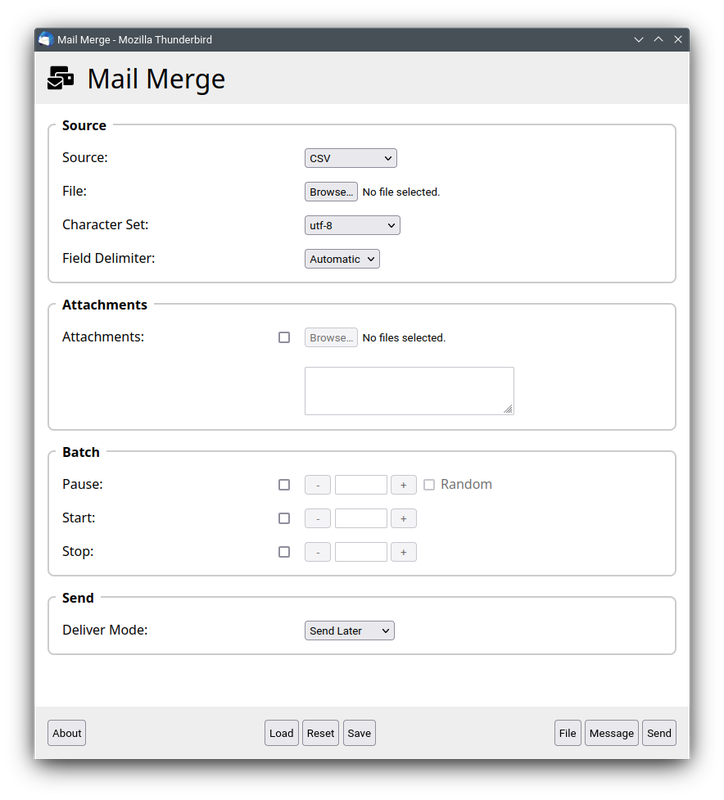
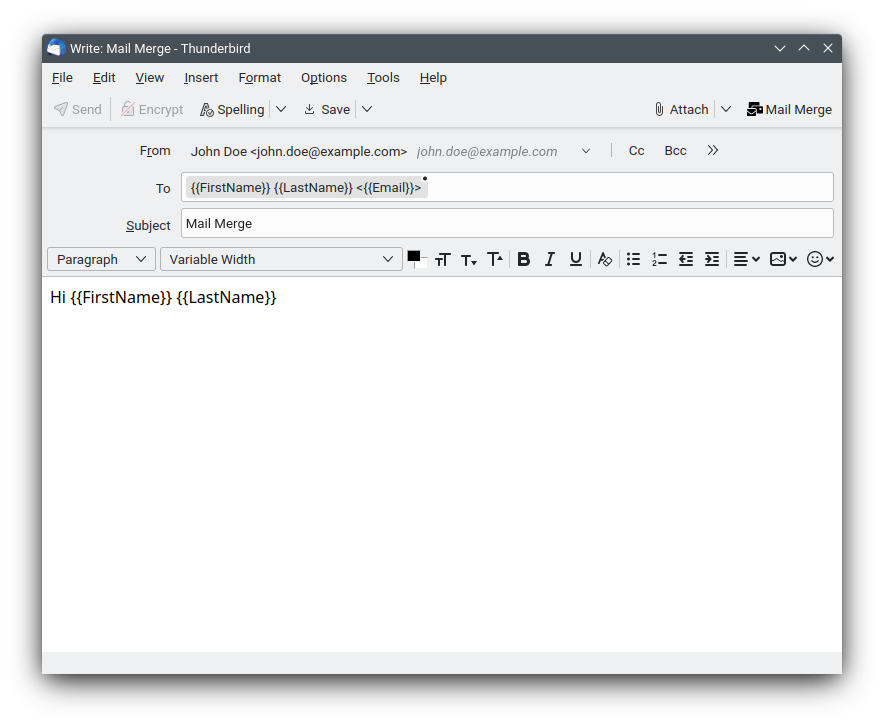
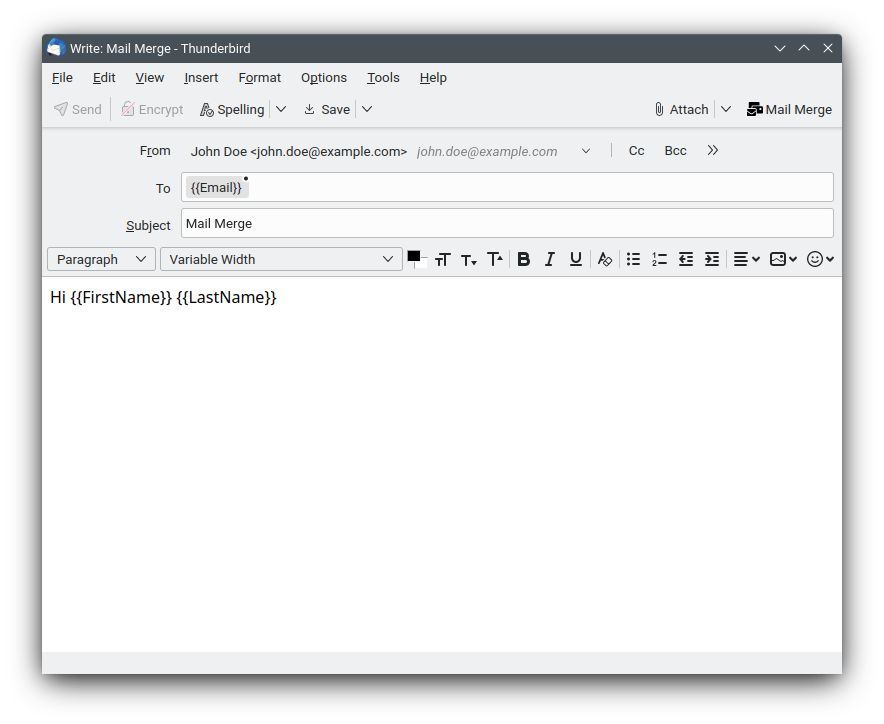
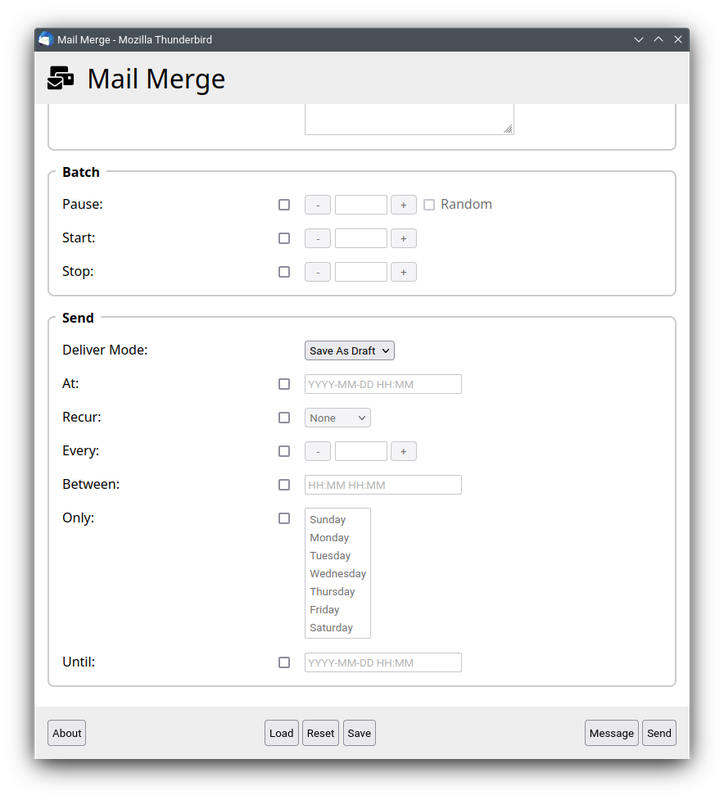
Step by Step: (CSV)
Screenshots: Draft Message | Draft Message | Mail Merge Dialog
The draft message is saved as a template in the "Templates" folder of your current account and for each recipient an individual and personalized message is automagically created in the folder "Local Folders -> Outbox"; ready for delivery via "File -> Send Unsent Messages".
----------------------------------------------------------------------------------------------------
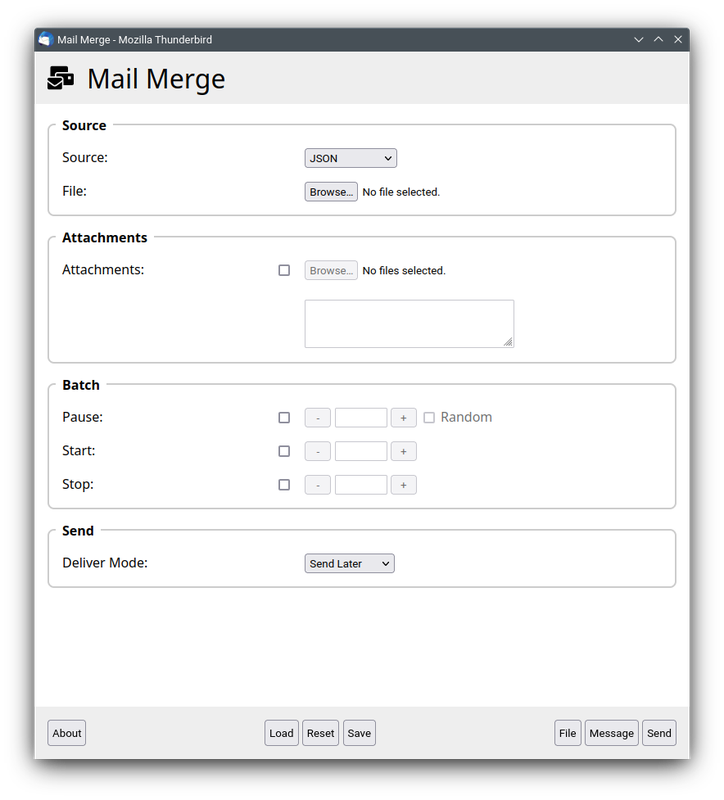
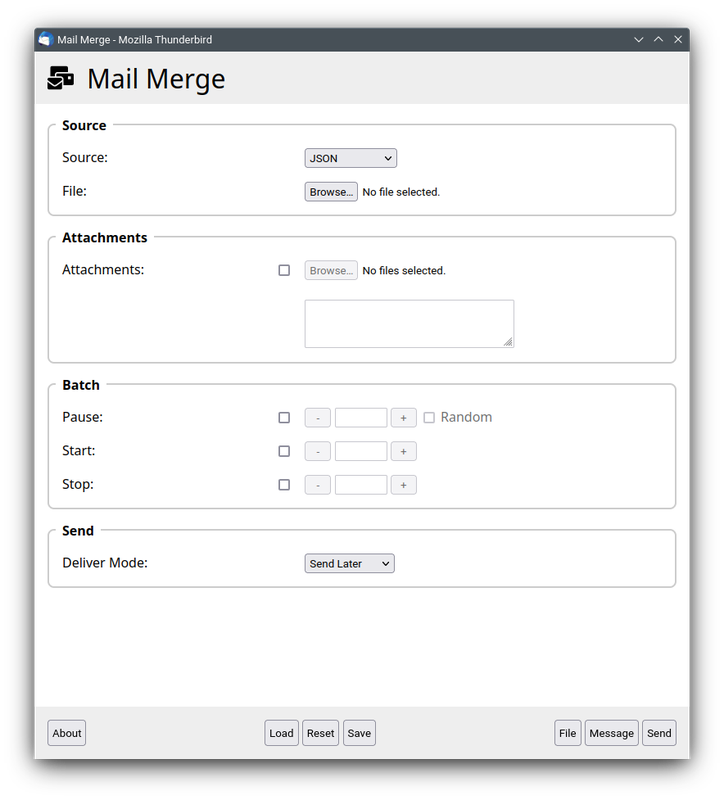
Step by Step: (JSON)
Screenshots: Draft Message | Draft Message | Mail Merge Dialog
The draft message is saved as a template in the "Templates" folder of your current account and for each recipient an individual and personalized message is automagically created in the folder "Local Folders -> Outbox"; ready for delivery via "File -> Send Unsent Messages".
----------------------------------------------------------------------------------------------------
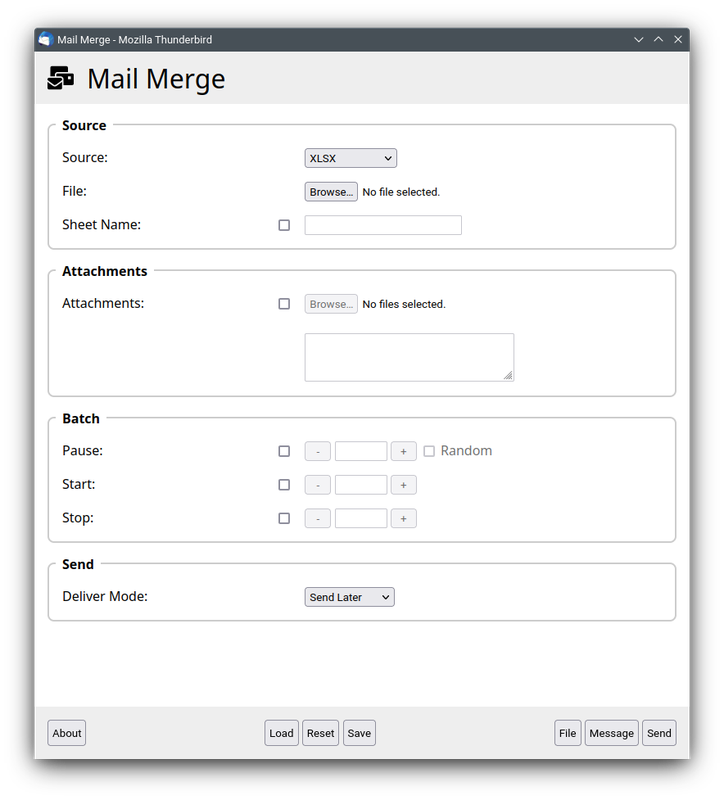
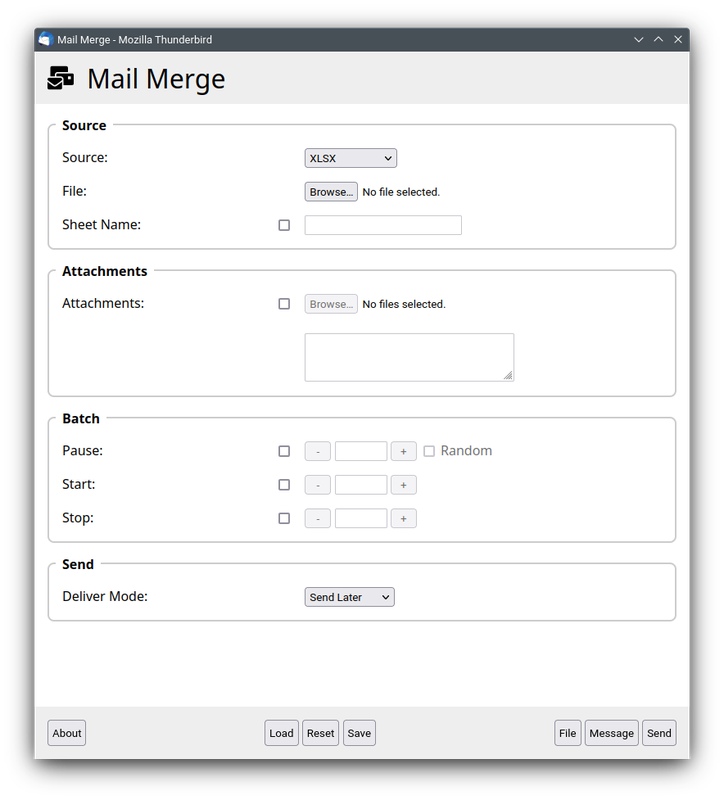
Step by Step: (XLSX)
Screenshots: Draft Message | Draft Message | Mail Merge Dialog
The draft message is saved as a template in the "Templates" folder of your current account and for each recipient an individual and personalized message is automagically created in the folder "Local Folders -> Outbox"; ready for delivery via "File -> Send Unsent Messages".
----------------------------------------------------------------------------------------------------
Deliver Mode Warning
Use "Send Now" as "Deliver Mode" at your own risk!
It is strongly recommended to use "Send Later" as "Deliver Mode" and to check the individual and personalized messages in the folder "Local Folders -> Outbox". Bugs in Thunderbird, bugs in Mail Merge and bugs in other add-ons may lead to unexpected and undesired results.
----------------------------------------------------------------------------------------------------
Encryption Warning
Mail Merge does not support encrypting or signing messages via OpenPGP or S/MIME! The individual and personalized messages created by Mail Merge will neither be encrypted nor signed.
----------------------------------------------------------------------------------------------------
Save As Template:
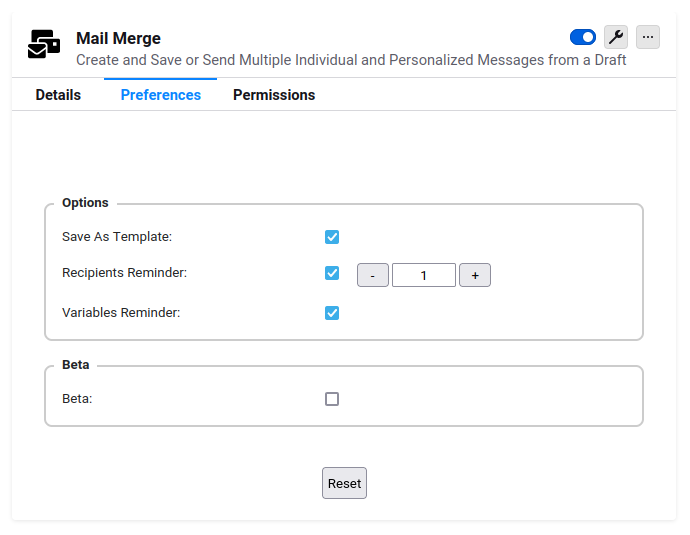
The draft message is saved as a template in the "Templates" folder of your current account. This can be activated and deactivated in the Preferences in the Add-ons Manager.
----------------------------------------------------------------------------------------------------
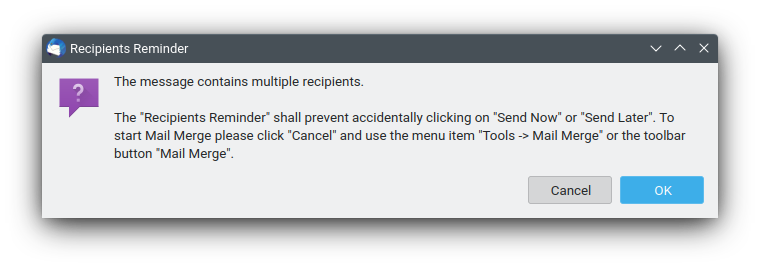
Recipients Reminder:
Screenshot: Recipients Reminder
The "Recipients Reminder" shall prevent accidentally clicking on "Send Now" or "Send Later". To start Mail Merge please click "Cancel" and use the menu item "Tools -> Mail Merge" or the toolbar button "Mail Merge".
The "Recipients Reminder" can be activated and deactivated in the Preferences in the Add-ons Manager.
----------------------------------------------------------------------------------------------------
Variables Reminder:
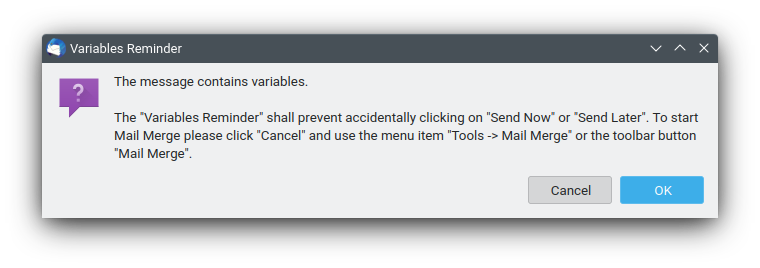
Screenshot: Variables Reminder
The "Variables Reminder" shall prevent accidentally clicking on "Send Now" or "Send Later". To start Mail Merge please click "Cancel" and use the menu item "Tools -> Mail Merge" or the toolbar button "Mail Merge".
The "Variables Reminder" can be activated and deactivated in the Preferences in the Add-ons Manager.
----------------------------------------------------------------------------------------------------
Beta:
Use "Beta" at your own risk!
In order to create the individual and personalized messages, Mail Merge uses its own legacy function by default. If "Beta" is enabled, then Mail Merge will use the new MailExtension APIs.
---------------------------------------------------------------------------------------------------
Load / Reset / Save the Settings
The settings in the Mail Merge Dialog are not automatically loaded and saved anymore. You can still load and save the settings manually using the buttons "Load" and "Save". The button "Reset" will reset the settings to their defaults - just like before.
Unfortunately the selected files, i.e. CSVs, JSONs, ODSs, XLSXs and Attachments, are not remembered anymore. In order to access local files Mail Merge needs the explicit permission granted by the user - via selecting the appropriate files in the html:input:file elements. This permission cannot be saved and restored.
This change is caused by a limitation of the new MailExtension APIs.
---------------------------------------------------------------------------------------------------
Extension Shortcut
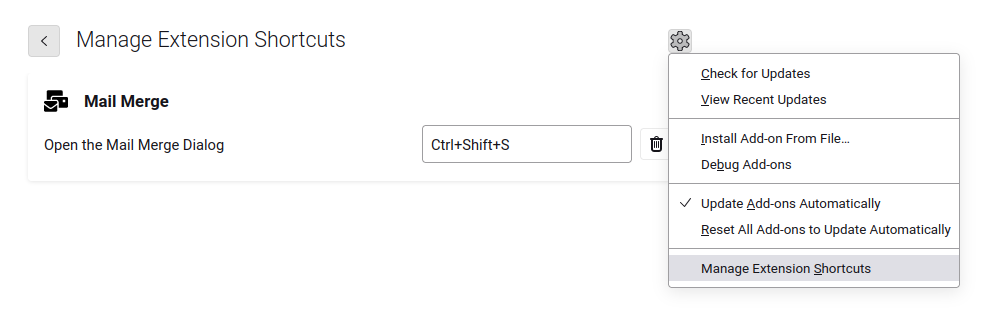
Screenshot: Extension Shortcut
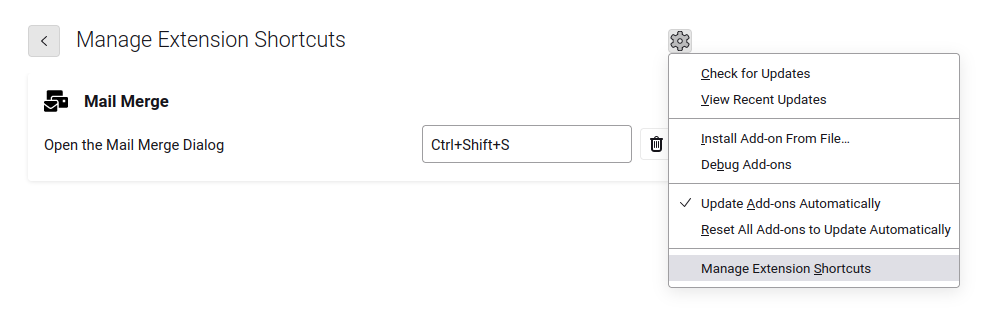
In the Add-ons Manager click on the "Gear" / "Tools for all add-ons" button and select "Manage Extension Shortcuts". Then configure a shortcut to open the Mail Merge Dialog in the compose window, e.g. "Ctrl+Shift+S" (recommended).
---------------------------------------------------------------------------------------------------
Variables:
In order to personalize the messages you can use variables:
If you use Mail Merge with the contacts in the address books of Thunderbird or CardBook, then you can use the predefined variables (see below). If you use Mail Merge with a spreadsheet, e.g. a CSV, JSON, ODS or XLSX, then the column names can be used as variables.
Variables are supported in the fields From, To, Cc, Bcc, ReplyTo, Subject, Body and Custom Headers in the compose window as well as the field "Attachments" and "At" in the Mail Merge Dialog.
There are a couple of different variable types available:
{{name}}
The variable will be replaced by the value of the field name, e.g.:
{{FirstName}}: the variable will be replaced by the value of the field FirstName
{{LastName}}: the variable will be replaced by the value of the field LastName
{{PrimaryEmail}}: the variable will be replaced by the value of the field PrimaryEmail
{{name|if|then}}
If the value of the field name equals if, then the variable will be replaced by then.
{{name|if|then|else}}
If the value of the field name equals if, then the variable will be replaced by then, else by else.
{{name|*|if|then|else}} (includes)
If the value of the field name includes if, then the variable will be replaced by then, else by else.
{{name|^|if|then|else}} (starts with)
If the value of the field name starts with if, then the variable will be replaced by then, else by else.
{{name|$|if|then|else}} (ends with)
If the value of the field name ends with if, then the variable will be replaced by then, else by else.
{{name|==|if|then|else}} (equal to) (number)
If the value of the field name is equal to if, then the variable will be replaced by then, else by else.
{{name|>|if|then|else}} (greater than) (number)
If the value of the field name is greater than if, then the variable will be replaced by then, else by else.
{{name|>=|if|then|else}} (greater than or equal to) (number)
If the value of the field name is greater than or equal to if, then the variable will be replaced by then, else by else.
{{name|<|if|then|else}} (less than) (number)
If the value of the field name is less than if, then the variable will be replaced by then, else by else.
{{name|<=|if|then|else}} (less than or equal to) (number)
If the value of the field name is less than or equal to if, then the variable will be replaced by then, else by else.
Nested Variables:
Variables can be nested. For example: To create individual emails only for your premium customers, you can add this into the To field:
{{FirstName}} {{LastName}} <{{Premium|x|{{Email}}}}>
{{Premium|x|{{Email}}}}
Empty Variables:
Variables can be empty. For example: You can test for an empty variable:
{{DisplayName||Empty|NotEmpty}}
---------------------------------------------------------------------------------------------------
Address Book:
Addressbook Properties Supported by Thunderbird
---------------------------------------------------------------------------------------------------
CardBook:
CardBook
CardBook: (Address)
CardBook: (Types)
The configured "Types" in the "CardBook Preferences" can be used by their "Code" as a first parameter for the properties address, email, impp, phone and url. For example:
CardBook: (Numbers)
In case you have multiple entries, you can use a number as a second parameter for the properties address, email, impp, phone and url. For example:
CardBook: (Custom Fields)
The configured "Custom Fields" in the "CardBook Preferences" can be used by its "Field Name". For example:
---------------------------------------------------------------------------------------------------
CSV:
Mail Merge supports CSVs with different character sets.
In the Mail Merge Dialog you must select the character set of the CSV. If you don't know the character set of the CSV, then it is recommended to use "windows-1252" under Windows and "utf-8" under Linux and macOS.
If "Automatic" is selected as the "Field Delimiter" in the Mail Merge Dialog, then the field delimiter is automatically detected by SheetJS. Alternatively you can select one of the available field delimiters (comma, semicolon, colon, tab) in the dropdown list.
The field delimiter may also be specified in the CSV itself using the metadata "sep=" in the very first line, e.g. "sep=#". In this case the character "#" is used as the field delimiter.
Specification:
Example:
----------------------------------------------------------------------------------------------------
JSON: (Array of Arrays)
Mail Merge supports UTF-8 encoded files in JSON format with Array of Arrays.
Example:
---------------------------------------------------------------------------------------------------
XLSX:
Mail Merge supports spreadsheets like ODS or XLSX. Support for spreadsheets is based on SheetJS.
---------------------------------------------------------------------------------------------------
Attachments: (Global)
Global Attachments, i.e. attachments which are the same for every recipient, can be added normally using the toolbar button "Attach" in the compose window.
Attachments: (Individual)
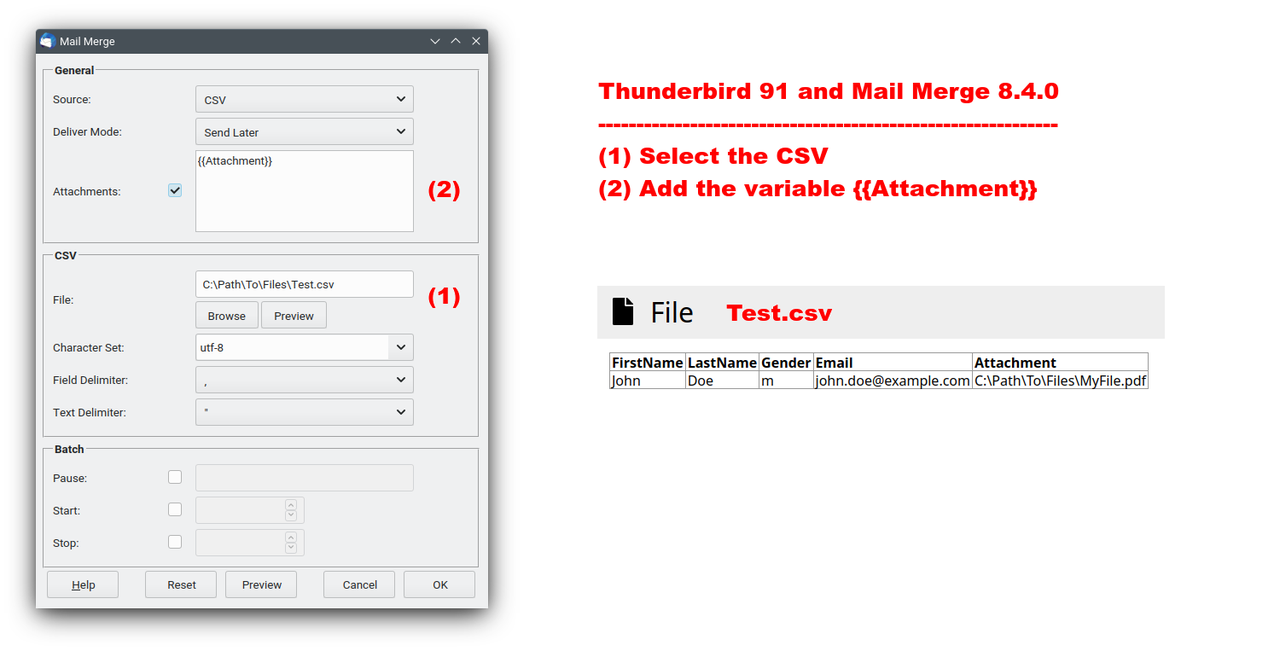
Individual Attachments, i.e. attachments which are different for every recipient, can be added in the field "Attachments" in the Mail Merge Dialog via variable(s). Multiple individual attachments can be separated by line breaks.
Example:
---------------------------------------------------------------------------------------------------
Change: Attachments
There is an important change in the way (individual) attachments are specified in the Mail Merge Dialog:
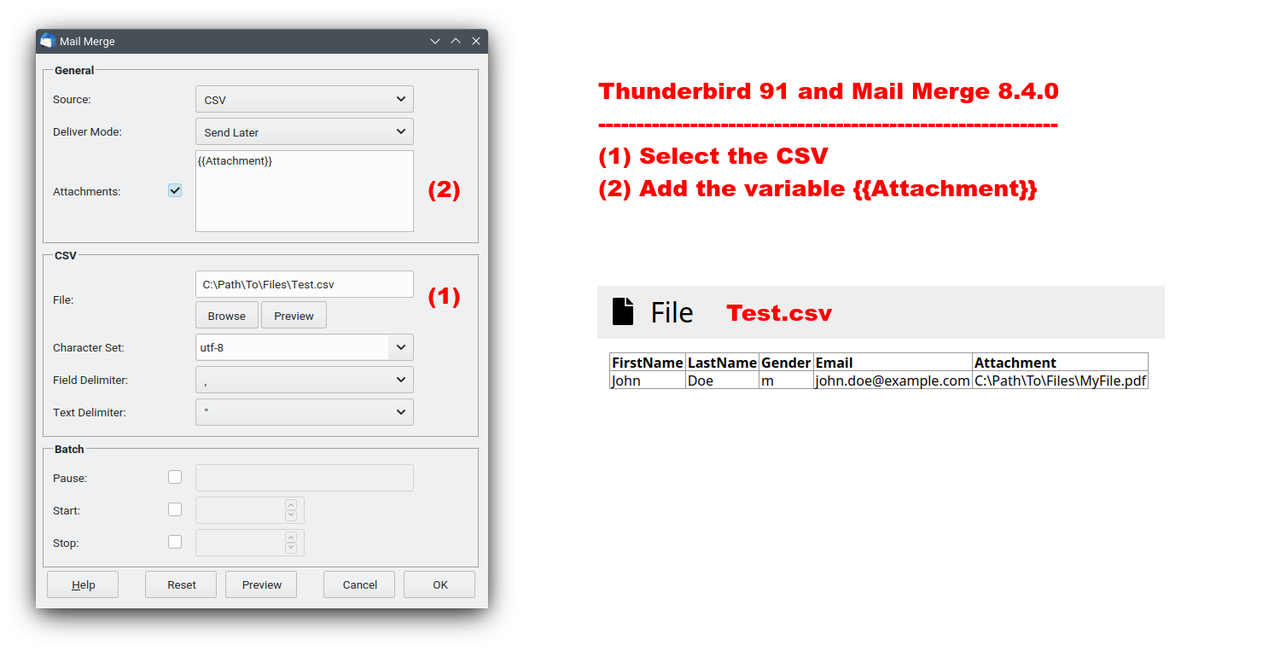
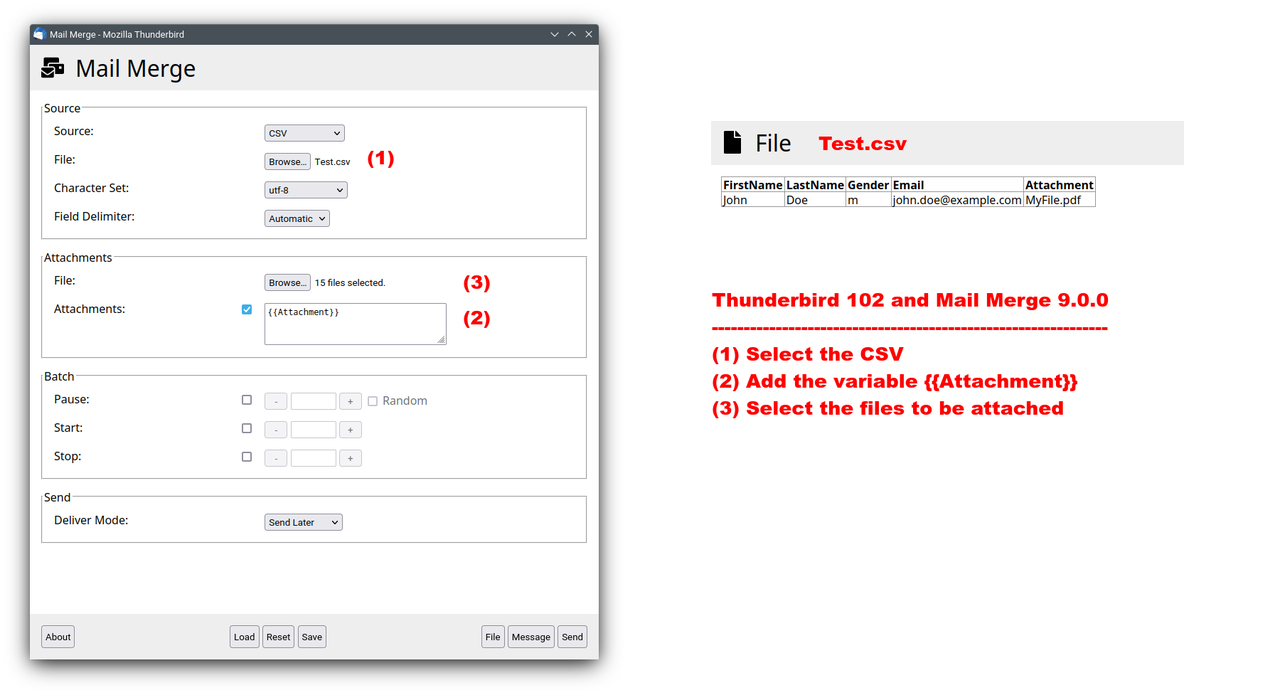
In Thunderbird 78 / 91 it was necessary to specify the filepath and filename, e.g. "C:\Path\To\Files\MyFile.pdf", in the field "Attachments" in the Mail Merge Dialog. See: Screenshot
In Thunderbird 102 / 115 / 128 / 140 it is necessary to specify the filename, e.g. "MyFile.pdf", in the field "Attachments" in the Mail Merge Dialog. Additionally you must select the files to be attached via the button "Browse". See: Screenshot
This change is caused by a limitation of the new MailExtension APIs.
----------------------------------------------------------------------------------------------------
Custom Headers:
Mail Merge supports Custom Headers with a "X-" prefix (variables are supported).
They can be configured via the hidden preference mail.compose.other.header in the "Config Editor". See: Custom Headers
----------------------------------------------------------------------------------------------------
List Headers:
Mail Merge supports List Headers with a "List-" prefix (variables are supported). For example: List-Id, List-Help, List-Unsubscribe and List-Unsubscribe-Post
They can be configured via the hidden preference mail.compose.other.header in the "Config Editor". See: Custom Headers
----------------------------------------------------------------------------------------------------
Batch: (Start, Stop and Pause)
Pause: Pause between two consecutive messages in seconds (optional)
Start: Number of the first message (optional)
Stop: Number of the last message (optional)
Random Pause:
If the checkbox "Random" in the Mail Merge Dialog is enabled, then Mail Merge will pause at random between "0" and "X" seconds between each two consecutive messages - with "X" being the value in the input field "Pause".
If the checkbox "Random" in the Mail Merge Dialog is disabled, then Mail Merge will pause "X" seconds between each two consecutive messages - with "X" being the value in the input field "Pause".
---------------------------------------------------------------------------------------------------
Send Later:
Screenshot: Send Later
---------------------------------------------------------------------------------------------------
Line Breaks:
Thunderbird uses an HTML editor internally. You can create line breaks with <br>.
---------------------------------------------------------------------------------------------------
Links and Images:
Thunderbird uses an HTML editor internally. You can create (individual) links and (individual) images via "Insert -> HTML":
Link: <a href="{{link}}">
Image: <img src="{{image}}">
---------------------------------------------------------------------------------------------------
Libraries:
Logo and icons are based on FontAwesome; Support for spreadsheets is based on SheetJS.
If you want to send a message to multiple recipients, there are a few common problems:
1) When you add the recipients in the To field, the recipients will see each other. (You can work around this problem by adding the recipients in the Bcc field.)
2) Most email providers limit the number of recipients in the To / Cc / Bcc field. (You can work around this problem by creating multiple messages.)
3) You cannot personalize the message. (You cannot work around this problem.)
You can work around some of these problems, but especially the last problem cannot be solved without creating individual messages. Of course there are third party services, that help you to send newsletters; but you have to trust them.
Mail Merge solves these problems by creating an individual and personalized message for each recipient in the To field from a draft message - locally on your computer without the need to trust third party services!
----------------------------------------------------------------------------------------------------
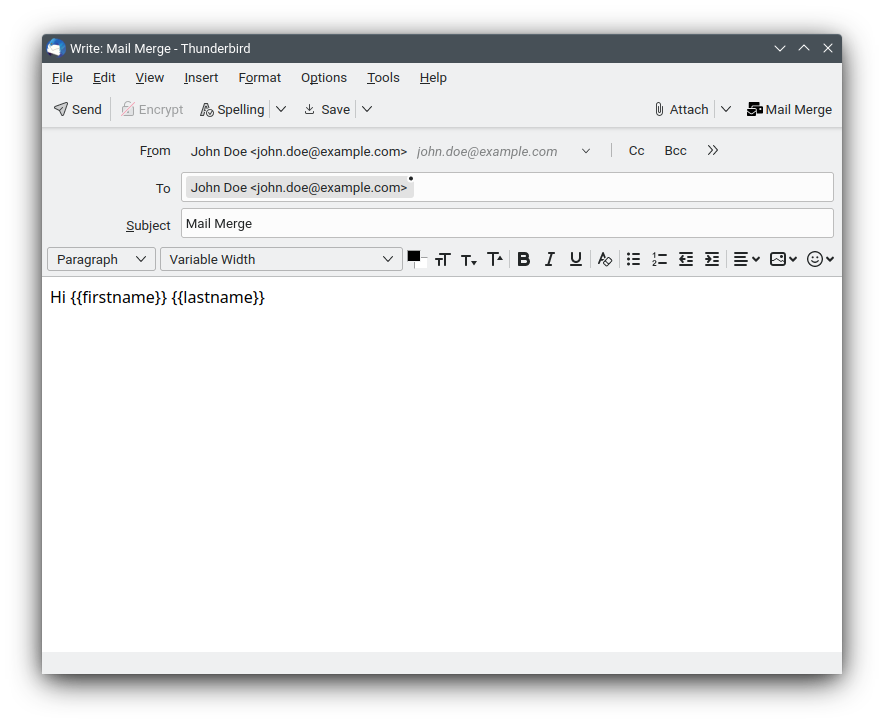
Step by Step: (Address Book)
Screenshots: Draft Message | Draft Message | Draft Message | Mail Merge Dialog
- Create a New Message ("File -> New -> Message")
- Add the contact(s), the mailing list(s) or the variable(s) into the To field, e.g.:
{{PrimaryEmail}} or {{FirstName}} {{LastName}} <{{PrimaryEmail}}> - Add the subject (variables are supported)
- Add the body (variables are supported)
- Add (global) attachments (optional)
- Click the menu item "Tools -> Mail Merge" or the toolbar button "Mail Merge"
- Select "Address Book" as "Source"
- Add (individual) attachments (optional) (variables are supported)
- Check "Start", "Stop" and "Pause" (optional)
- Check "Deliver Mode"
- Click "Send"
The draft message is saved as a template in the "Templates" folder of your current account and for each recipient an individual and personalized message is automagically created in the folder "Local Folders -> Outbox"; ready for delivery via "File -> Send Unsent Messages".
----------------------------------------------------------------------------------------------------
Step by Step: (CardBook)
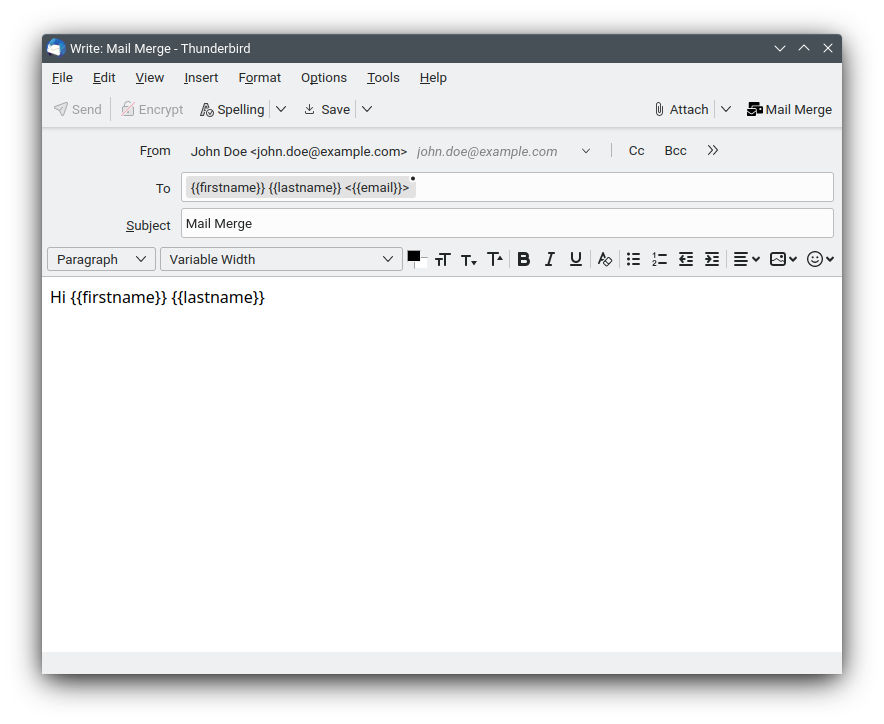
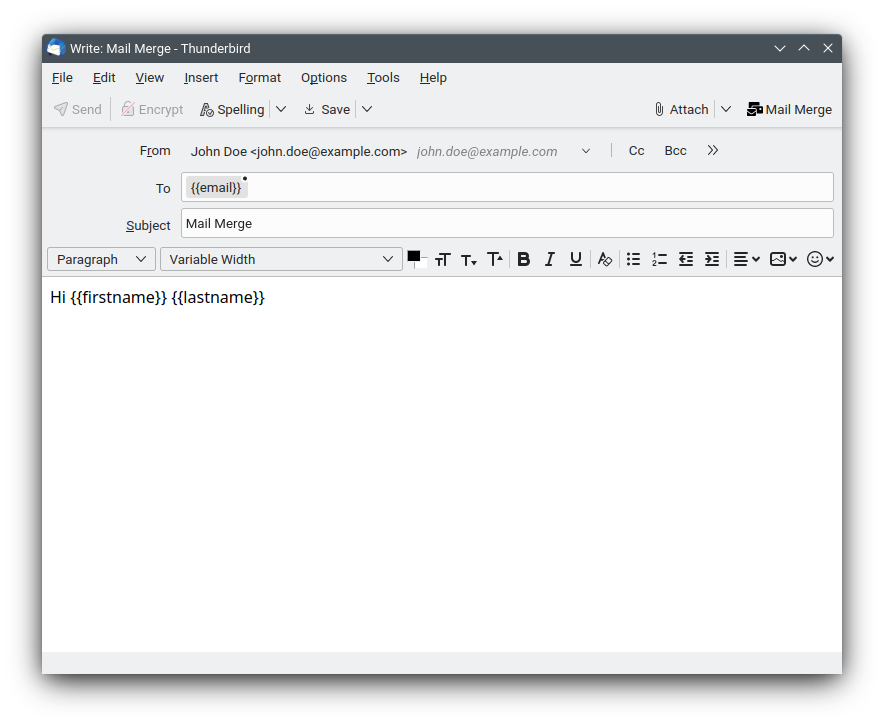
Screenshots: Draft Message | Draft Message | Draft Message | Mail Merge Dialog
- Create a New Message ("File -> New -> Message")
- Add the contact(s), the mailing list(s) or the variable(s) into the To field, e.g.:
{{email}} or {{firstname}} {{lastname}} <{{email}}> - Add the subject (variables are supported)
- Add the body (variables are supported)
- Add (global) attachments (optional)
- Click the menu item "Tools -> Mail Merge" or the toolbar button "Mail Merge"
- Select "CardBook" as "Source"
- Add (individual) attachments (optional) (variables are supported)
- Check "Start", "Stop" and "Pause" (optional)
- Check "Deliver Mode"
- Click "Send"
The draft message is saved as a template in the "Templates" folder of your current account and for each recipient an individual and personalized message is automagically created in the folder "Local Folders -> Outbox"; ready for delivery via "File -> Send Unsent Messages".
----------------------------------------------------------------------------------------------------
Step by Step: (CSV)
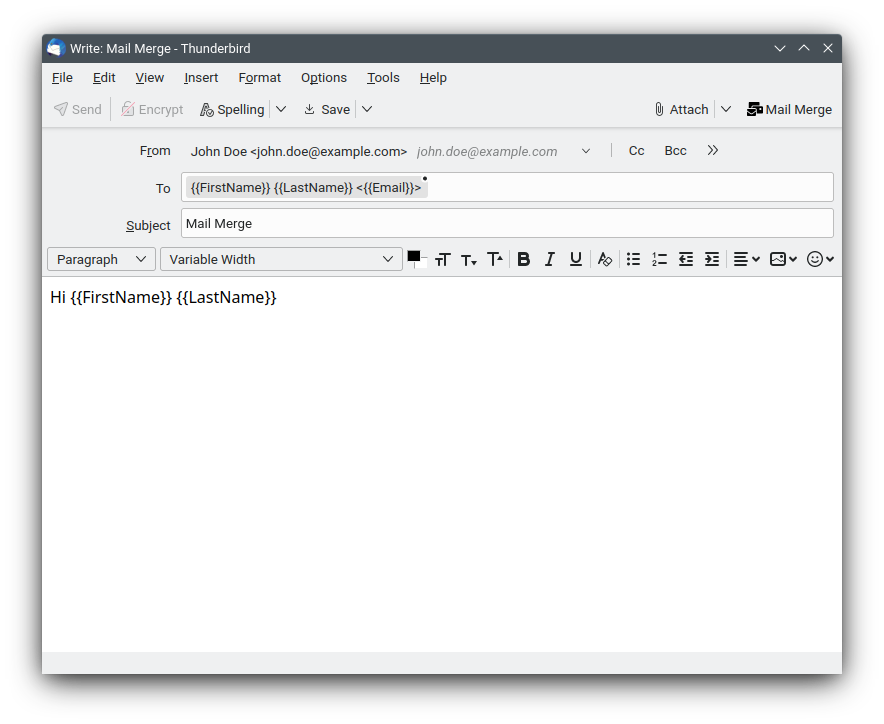
Screenshots: Draft Message | Draft Message | Mail Merge Dialog
- Create a New Message ("File -> New -> Message")
- Add the variable(s) into the To field, e.g.:
{{Email}} or {{FirstName}} {{LastName}} <{{Email}}> - Add the subject (variables are supported)
- Add the body (variables are supported)
- Add (global) attachments (optional)
- Click the menu item "Tools -> Mail Merge" or the toolbar button "Mail Merge"
- Select "CSV" as "Source"
- Select the file via the button "Browse"
- Check "Character Set" and "Field Delimiter"
- Add (individual) attachments (optional) (variables are supported)
- Check "Start", "Stop" and "Pause" (optional)
- Check "Deliver Mode"
- Click "Send"
The draft message is saved as a template in the "Templates" folder of your current account and for each recipient an individual and personalized message is automagically created in the folder "Local Folders -> Outbox"; ready for delivery via "File -> Send Unsent Messages".
----------------------------------------------------------------------------------------------------
Step by Step: (JSON)
Screenshots: Draft Message | Draft Message | Mail Merge Dialog
- Create a New Message ("File -> New -> Message")
- Add the variable(s) into the To field, e.g.:
{{Email}} or {{FirstName}} {{LastName}} <{{Email}}> - Add the subject (variables are supported)
- Add the body (variables are supported)
- Add (global) attachments (optional)
- Click the menu item "Tools -> Mail Merge" or the toolbar button "Mail Merge"
- Select "JSON" as "Source"
- Select the file via the button "Browse"
- Add (individual) attachments (optional) (variables are supported)
- Check "Start", "Stop" and "Pause" (optional)
- Check "Deliver Mode"
- Click "Send"
The draft message is saved as a template in the "Templates" folder of your current account and for each recipient an individual and personalized message is automagically created in the folder "Local Folders -> Outbox"; ready for delivery via "File -> Send Unsent Messages".
----------------------------------------------------------------------------------------------------
Step by Step: (XLSX)
Screenshots: Draft Message | Draft Message | Mail Merge Dialog
- Create a New Message ("File -> New -> Message")
- Add the variable(s) into the To field, e.g.:
{{Email}} or {{FirstName}} {{LastName}} <{{Email}}> - Add the subject (variables are supported)
- Add the body (variables are supported)
- Add (global) attachments (optional)
- Click the menu item "Tools -> Mail Merge" or the toolbar button "Mail Merge"
- Select "XLSX" as "Source"
- Select the file via the button "Browse"
- Check "Sheetname" (optional)
- Add (individual) attachments (optional) (variables are supported)
- Check "Start", "Stop" and "Pause" (optional)
- Check "Deliver Mode"
- Click "Send"
The draft message is saved as a template in the "Templates" folder of your current account and for each recipient an individual and personalized message is automagically created in the folder "Local Folders -> Outbox"; ready for delivery via "File -> Send Unsent Messages".
----------------------------------------------------------------------------------------------------
Deliver Mode Warning
Use "Send Now" as "Deliver Mode" at your own risk!
It is strongly recommended to use "Send Later" as "Deliver Mode" and to check the individual and personalized messages in the folder "Local Folders -> Outbox". Bugs in Thunderbird, bugs in Mail Merge and bugs in other add-ons may lead to unexpected and undesired results.
----------------------------------------------------------------------------------------------------
Encryption Warning
Mail Merge does not support encrypting or signing messages via OpenPGP or S/MIME! The individual and personalized messages created by Mail Merge will neither be encrypted nor signed.
----------------------------------------------------------------------------------------------------
Save As Template:
The draft message is saved as a template in the "Templates" folder of your current account. This can be activated and deactivated in the Preferences in the Add-ons Manager.
----------------------------------------------------------------------------------------------------
Recipients Reminder:
Screenshot: Recipients Reminder
The "Recipients Reminder" shall prevent accidentally clicking on "Send Now" or "Send Later". To start Mail Merge please click "Cancel" and use the menu item "Tools -> Mail Merge" or the toolbar button "Mail Merge".
The "Recipients Reminder" can be activated and deactivated in the Preferences in the Add-ons Manager.
----------------------------------------------------------------------------------------------------
Variables Reminder:
Screenshot: Variables Reminder
The "Variables Reminder" shall prevent accidentally clicking on "Send Now" or "Send Later". To start Mail Merge please click "Cancel" and use the menu item "Tools -> Mail Merge" or the toolbar button "Mail Merge".
The "Variables Reminder" can be activated and deactivated in the Preferences in the Add-ons Manager.
----------------------------------------------------------------------------------------------------
Beta:
Use "Beta" at your own risk!
In order to create the individual and personalized messages, Mail Merge uses its own legacy function by default. If "Beta" is enabled, then Mail Merge will use the new MailExtension APIs.
---------------------------------------------------------------------------------------------------
Load / Reset / Save the Settings
The settings in the Mail Merge Dialog are not automatically loaded and saved anymore. You can still load and save the settings manually using the buttons "Load" and "Save". The button "Reset" will reset the settings to their defaults - just like before.
Unfortunately the selected files, i.e. CSVs, JSONs, ODSs, XLSXs and Attachments, are not remembered anymore. In order to access local files Mail Merge needs the explicit permission granted by the user - via selecting the appropriate files in the html:input:file elements. This permission cannot be saved and restored.
This change is caused by a limitation of the new MailExtension APIs.
---------------------------------------------------------------------------------------------------
Extension Shortcut
Screenshot: Extension Shortcut
In the Add-ons Manager click on the "Gear" / "Tools for all add-ons" button and select "Manage Extension Shortcuts". Then configure a shortcut to open the Mail Merge Dialog in the compose window, e.g. "Ctrl+Shift+S" (recommended).
---------------------------------------------------------------------------------------------------
Variables:
In order to personalize the messages you can use variables:
If you use Mail Merge with the contacts in the address books of Thunderbird or CardBook, then you can use the predefined variables (see below). If you use Mail Merge with a spreadsheet, e.g. a CSV, JSON, ODS or XLSX, then the column names can be used as variables.
Variables are supported in the fields From, To, Cc, Bcc, ReplyTo, Subject, Body and Custom Headers in the compose window as well as the field "Attachments" and "At" in the Mail Merge Dialog.
There are a couple of different variable types available:
{{name}}
The variable will be replaced by the value of the field name, e.g.:
{{FirstName}}: the variable will be replaced by the value of the field FirstName
{{LastName}}: the variable will be replaced by the value of the field LastName
{{PrimaryEmail}}: the variable will be replaced by the value of the field PrimaryEmail
{{name|if|then}}
If the value of the field name equals if, then the variable will be replaced by then.
{{name|if|then|else}}
If the value of the field name equals if, then the variable will be replaced by then, else by else.
{{name|*|if|then|else}} (includes)
If the value of the field name includes if, then the variable will be replaced by then, else by else.
{{name|^|if|then|else}} (starts with)
If the value of the field name starts with if, then the variable will be replaced by then, else by else.
{{name|$|if|then|else}} (ends with)
If the value of the field name ends with if, then the variable will be replaced by then, else by else.
{{name|==|if|then|else}} (equal to) (number)
If the value of the field name is equal to if, then the variable will be replaced by then, else by else.
{{name|>|if|then|else}} (greater than) (number)
If the value of the field name is greater than if, then the variable will be replaced by then, else by else.
{{name|>=|if|then|else}} (greater than or equal to) (number)
If the value of the field name is greater than or equal to if, then the variable will be replaced by then, else by else.
{{name|<|if|then|else}} (less than) (number)
If the value of the field name is less than if, then the variable will be replaced by then, else by else.
{{name|<=|if|then|else}} (less than or equal to) (number)
If the value of the field name is less than or equal to if, then the variable will be replaced by then, else by else.
Nested Variables:
Variables can be nested. For example: To create individual emails only for your premium customers, you can add this into the To field:
{{FirstName}} {{LastName}} <{{Premium|x|{{Email}}}}>
{{Premium|x|{{Email}}}}
Empty Variables:
Variables can be empty. For example: You can test for an empty variable:
{{DisplayName||Empty|NotEmpty}}
---------------------------------------------------------------------------------------------------
Address Book:
Addressbook Properties Supported by Thunderbird
{{DisplayName}}
{{FirstName}}
{{LastName}}
{{NickName}}
{{NamePrefix}}
{{NameSuffix}}
{{AdditionalNames}}
{{PrimaryEmail}}
{{SecondEmail}}
{{HomePhone}}
{{WorkPhone}}
{{CellularNumber}}
{{FaxNumber}}
{{PagerNumber}}
{{HomeAddress}}
{{HomeCity}}
{{HomeState}}
{{HomeZipCode}}
{{HomeCountry}}
{{WebPage2}}
{{WorkAddress}}
{{WorkCity}}
{{WorkState}}
{{WorkZipCode}}
{{WorkCountry}}
{{WebPage1}}
{{JobTitle}}
{{Department}}
{{Company}}
{{Custom1}}
{{Custom2}}
{{Custom3}}
{{Custom4}}
{{Notes}}
{{BirthYear}}
{{BirthMonth}}
{{BirthDay}}
{{AnniversaryYear}}
{{AnniversaryMonth}}
{{AnniversaryDay}}
---------------------------------------------------------------------------------------------------
CardBook:
CardBook
{{dirPrefId}}
{{cardurl}}
{{cacheuri}}
{{etag}}
{{updated}}
{{deleted}}
{{created}}
{{isAList}}
{{lastname}}
{{firstname}}
{{othername}}
{{prefixname}}
{{suffixname}}
{{fn}}
{{nickname}}
{{bday}}
{{gender}}
{{birthplace}}
{{anniversary}}
{{deathdate}}
{{deathplace}}
{{adr}}
{{tel}}
{{email}}
{{emails}}
{{impp}}
{{url}}
{{mailer}}
{{tz}}
{{geo}}
{{title}}
{{role}}
{{agent}}
{{org}}
{{categories}}
{{note}}
{{prodid}}
{{sortstring}}
{{uid}}
{{rev}}
{{version}}
{{class1}}
{{key}}
{{others}}
{{cbid}}
{{photo}}
{{logo}}
{{sound}}
{{kind}}
{{member}}
CardBook: (Address)
 {{adr}}
{{adrpostoffice}}
{{adrextended}}
{{adrstreet}}
{{adrlocality}}
{{adrregion}}
{{adrpostalcode}}
{{adrcountry}}
CardBook: (Types)
The configured "Types" in the "CardBook Preferences" can be used by their "Code" as a first parameter for the properties address, email, impp, phone and url. For example:
{{adr#home}}
{{adr#work}}
{{adr#other}}
{{email#home}}
{{email#work}}
{{email#other}}
{{impp#home}}
{{impp#work}}
{{impp#other}}
{{tel#cell}}
{{tel#fax}}
{{tel#main}}
{{tel#pager}}
{{tel#home}}
{{tel#work}}
{{tel#other}}
{{url#home}}
{{url#work}}
{{url#other}}
CardBook: (Numbers)
In case you have multiple entries, you can use a number as a second parameter for the properties address, email, impp, phone and url. For example:
{{url#home#0}}
{{url#home#1}}
{{url#home#2}}
CardBook: (Custom Fields)
The configured "Custom Fields" in the "CardBook Preferences" can be used by its "Field Name". For example:
{{others#X-CUSTOM1}}
{{others#X-CUSTOM2}}
{{others#X-CUSTOM3}}
{{others#X-CUSTOM4}}
---------------------------------------------------------------------------------------------------
CSV:
Mail Merge supports CSVs with different character sets.
In the Mail Merge Dialog you must select the character set of the CSV. If you don't know the character set of the CSV, then it is recommended to use "windows-1252" under Windows and "utf-8" under Linux and macOS.
If "Automatic" is selected as the "Field Delimiter" in the Mail Merge Dialog, then the field delimiter is automatically detected by SheetJS. Alternatively you can select one of the available field delimiters (comma, semicolon, colon, tab) in the dropdown list.
The field delimiter may also be specified in the CSV itself using the metadata "sep=" in the very first line, e.g. "sep=#". In this case the character "#" is used as the field delimiter.
Specification:
records are separated by line breaks (\r, \n, \r\n)
fields are separated by field delimiters (comma, semicolon, colon, tab)
fields may be enclosed within text delimiters (double quote)
fields with embedded line breaks must be enclosed within text delimiters
fields with embedded field delimiters must be enclosed within text delimiters
fields with embedded text delimiters must be enclosed within text delimiters
embedded text delimiters must be doubled
first record must contain column names
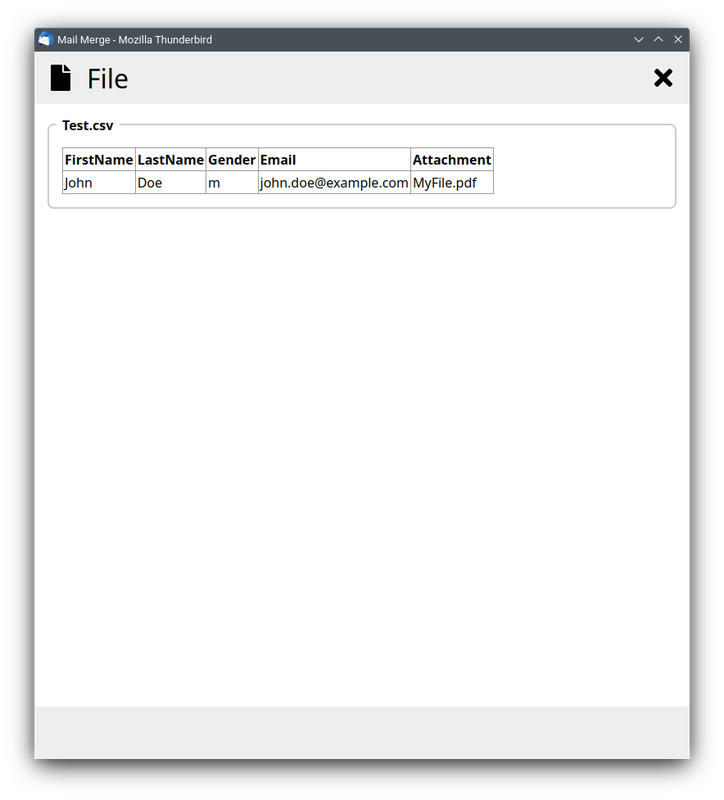
Example:
FirstName,LastName,Gender,Email,Attachment
John,Doe,m,john.doe@example.com,MyFile.pdf
----------------------------------------------------------------------------------------------------
JSON: (Array of Arrays)
Mail Merge supports UTF-8 encoded files in JSON format with Array of Arrays.
Example:
[
["FirstName","LastName","Gender","Email","Attachment"],
["John","Doe","m","john.doe@example.com","MyFile.pdf"]
]
---------------------------------------------------------------------------------------------------
XLSX:
Mail Merge supports spreadsheets like ODS or XLSX. Support for spreadsheets is based on SheetJS.
---------------------------------------------------------------------------------------------------
Attachments: (Global)
Global Attachments, i.e. attachments which are the same for every recipient, can be added normally using the toolbar button "Attach" in the compose window.
Attachments: (Individual)
Individual Attachments, i.e. attachments which are different for every recipient, can be added in the field "Attachments" in the Mail Merge Dialog via variable(s). Multiple individual attachments can be separated by line breaks.
Example:
{{Attachment}}---------------------------------------------------------------------------------------------------
Change: Attachments
There is an important change in the way (individual) attachments are specified in the Mail Merge Dialog:
In Thunderbird 78 / 91 it was necessary to specify the filepath and filename, e.g. "C:\Path\To\Files\MyFile.pdf", in the field "Attachments" in the Mail Merge Dialog. See: Screenshot
In Thunderbird 102 / 115 / 128 / 140 it is necessary to specify the filename, e.g. "MyFile.pdf", in the field "Attachments" in the Mail Merge Dialog. Additionally you must select the files to be attached via the button "Browse". See: Screenshot
This change is caused by a limitation of the new MailExtension APIs.
----------------------------------------------------------------------------------------------------
Custom Headers:
Mail Merge supports Custom Headers with a "X-" prefix (variables are supported).
They can be configured via the hidden preference mail.compose.other.header in the "Config Editor". See: Custom Headers
----------------------------------------------------------------------------------------------------
List Headers:
Mail Merge supports List Headers with a "List-" prefix (variables are supported). For example: List-Id, List-Help, List-Unsubscribe and List-Unsubscribe-Post
They can be configured via the hidden preference mail.compose.other.header in the "Config Editor". See: Custom Headers
----------------------------------------------------------------------------------------------------
Batch: (Start, Stop and Pause)
Pause: Pause between two consecutive messages in seconds (optional)
Start: Number of the first message (optional)
Stop: Number of the last message (optional)
Random Pause:
If the checkbox "Random" in the Mail Merge Dialog is enabled, then Mail Merge will pause at random between "0" and "X" seconds between each two consecutive messages - with "X" being the value in the input field "Pause".
If the checkbox "Random" in the Mail Merge Dialog is disabled, then Mail Merge will pause "X" seconds between each two consecutive messages - with "X" being the value in the input field "Pause".
---------------------------------------------------------------------------------------------------
Send Later:
Screenshot: Send Later
---------------------------------------------------------------------------------------------------
Line Breaks:
Thunderbird uses an HTML editor internally. You can create line breaks with <br>.
---------------------------------------------------------------------------------------------------
Links and Images:
Thunderbird uses an HTML editor internally. You can create (individual) links and (individual) images via "Insert -> HTML":
Link: <a href="{{link}}">
Image: <img src="{{image}}">
---------------------------------------------------------------------------------------------------
Libraries:
Logo and icons are based on FontAwesome; Support for spreadsheets is based on SheetJS.